Before you can download an Instagram video, you need the correct link. This sounds simple, but many download problems happen because the wrong URL was copied. This guide shows how to copy an Instagram video or Reel link on iPhone, Android, and desktop, and how to make sure the link is supported by SaveReels.
Why the Correct Link Matters
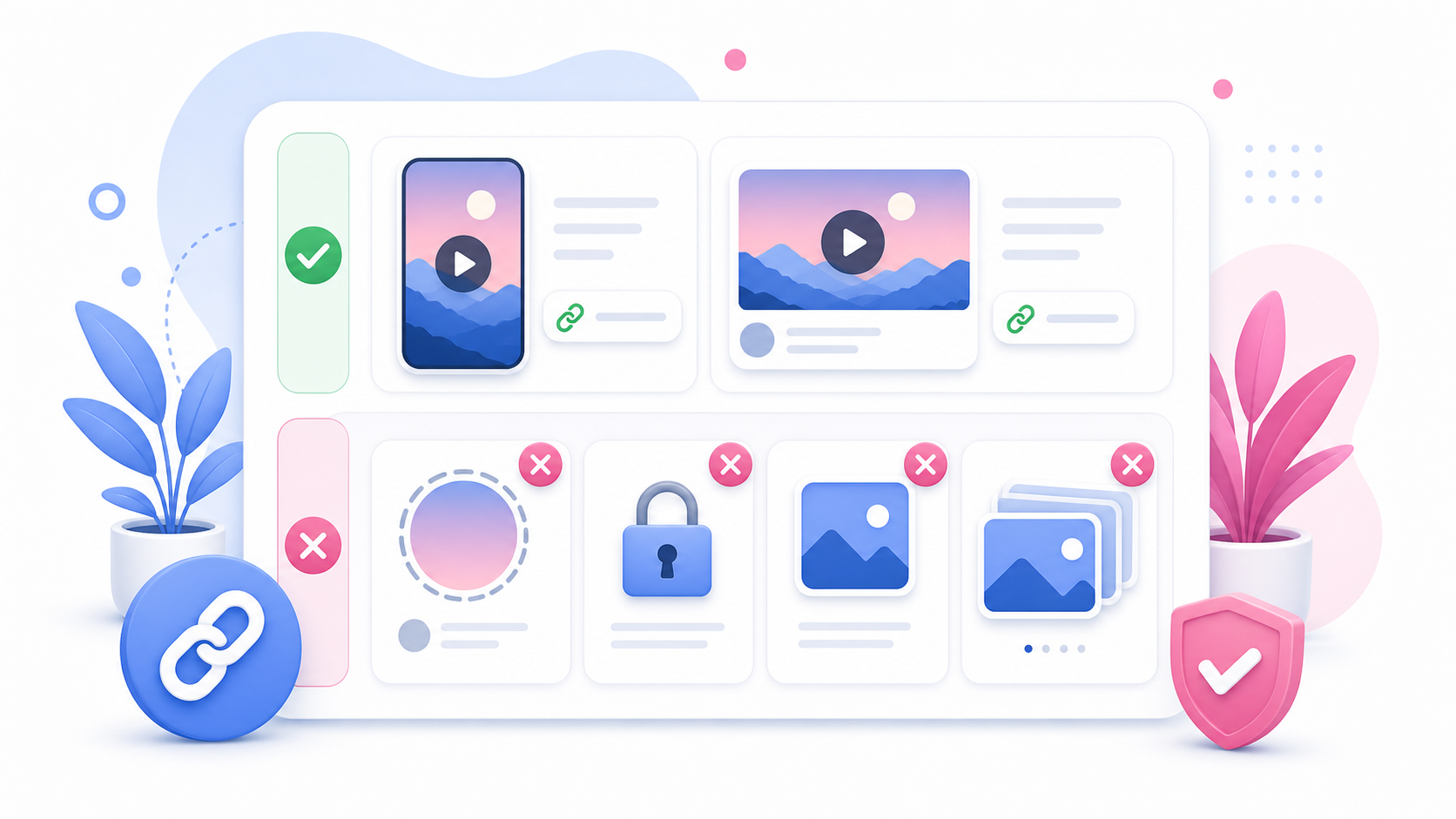
SaveReels needs a direct link to a supported public Instagram video or Reel. If you copy a profile link, hashtag link, Explore page, Story link, or private message preview, the downloader may not know which video to process. A correct link should open a specific video post or Reel.
How to Copy an Instagram Video Link on iPhone
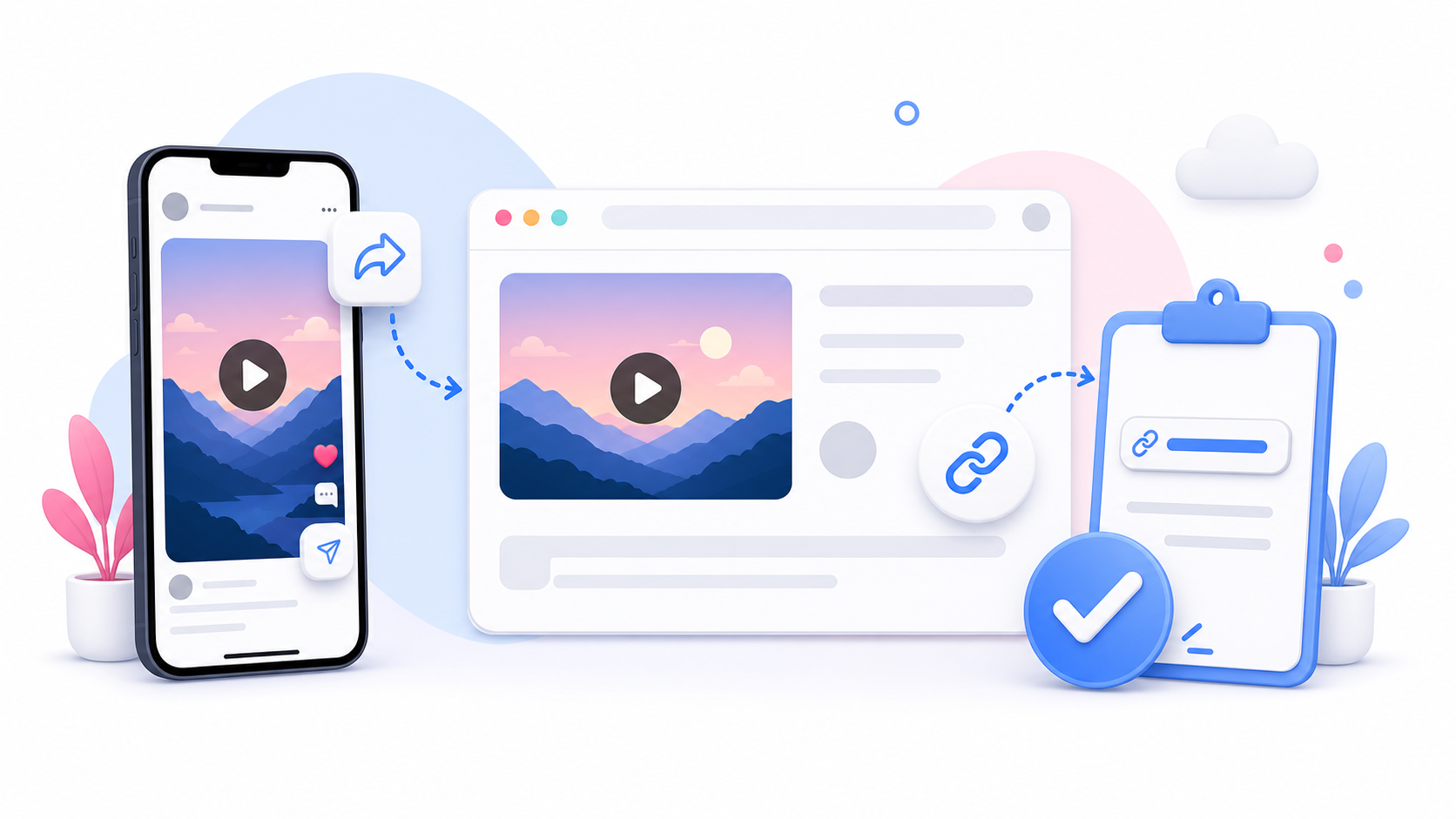
Open Instagram on your iPhone and find the video or Reel you want to download. Then: Open the video or Reel. Tap the share icon or three-dot menu. Choose Copy link. Open SaveReels in Safari or your preferred browser. Paste the link into the downloader. If the copied link does not work, return to Instagram and copy it again directly from the post.
How to Copy an Instagram Video Link on Android
Open Instagram on your Android phone and go to the public video or Reel. Then: Tap the share icon or post menu. Choose Copy link. Open your browser. Go to SaveReels. Paste the link into the input field. On some Android devices, you may see slightly different wording, but the action is the same: copy the direct URL for the video.
How to Copy an Instagram Video Link on Desktop
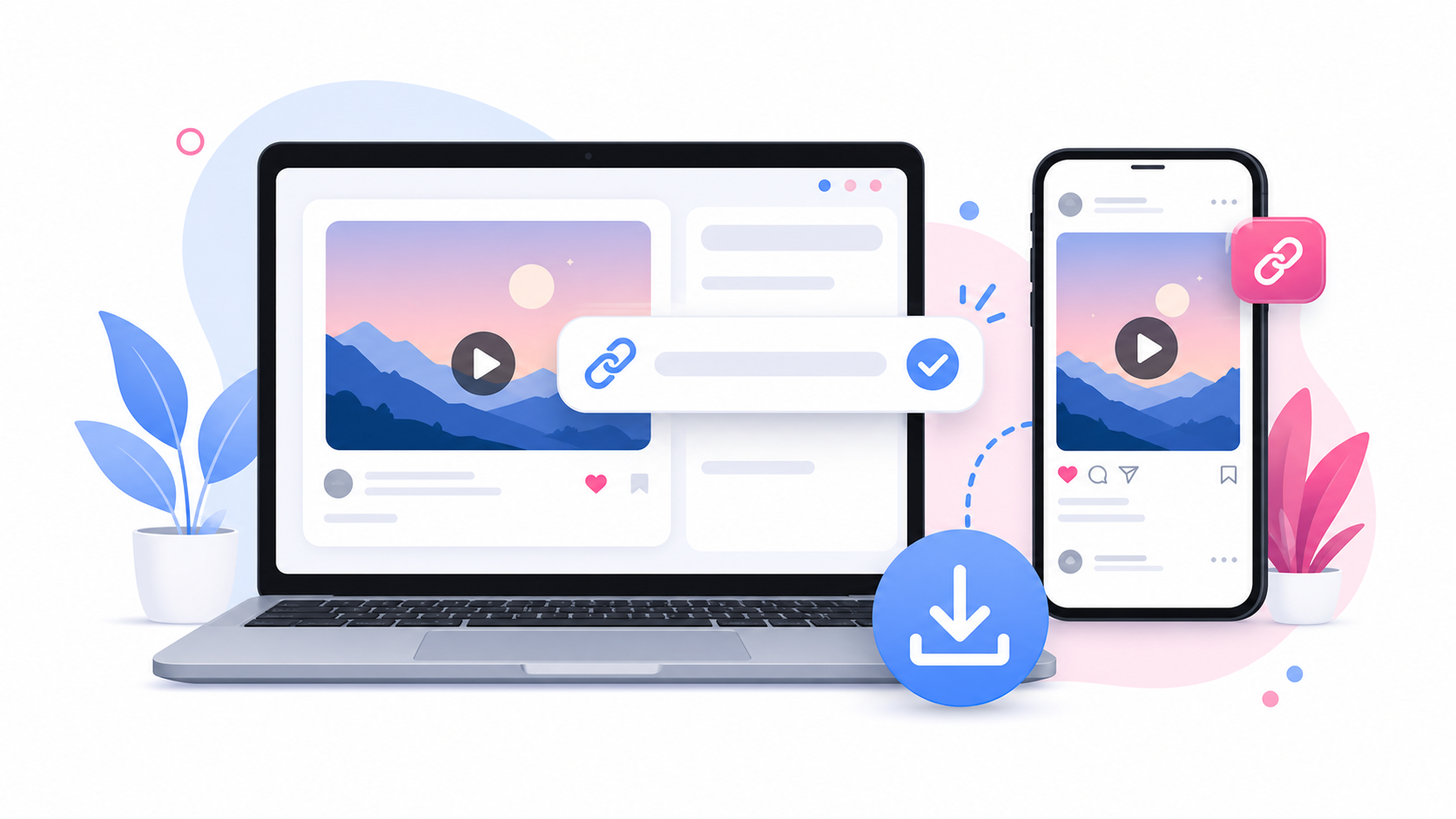
If you use Instagram in a desktop browser, copying the link is often even easier. Try one of these methods: Method 1: Open the video or Reel in your browser. Copy the URL from the browser address bar. Paste it into SaveReels. Method 2: Open the video post. Click the menu or share option. Choose Copy link. Paste the copied link into SaveReels. Make sure the URL opens the video itself, not just the profile page.
How to Know If You Copied the Right Link
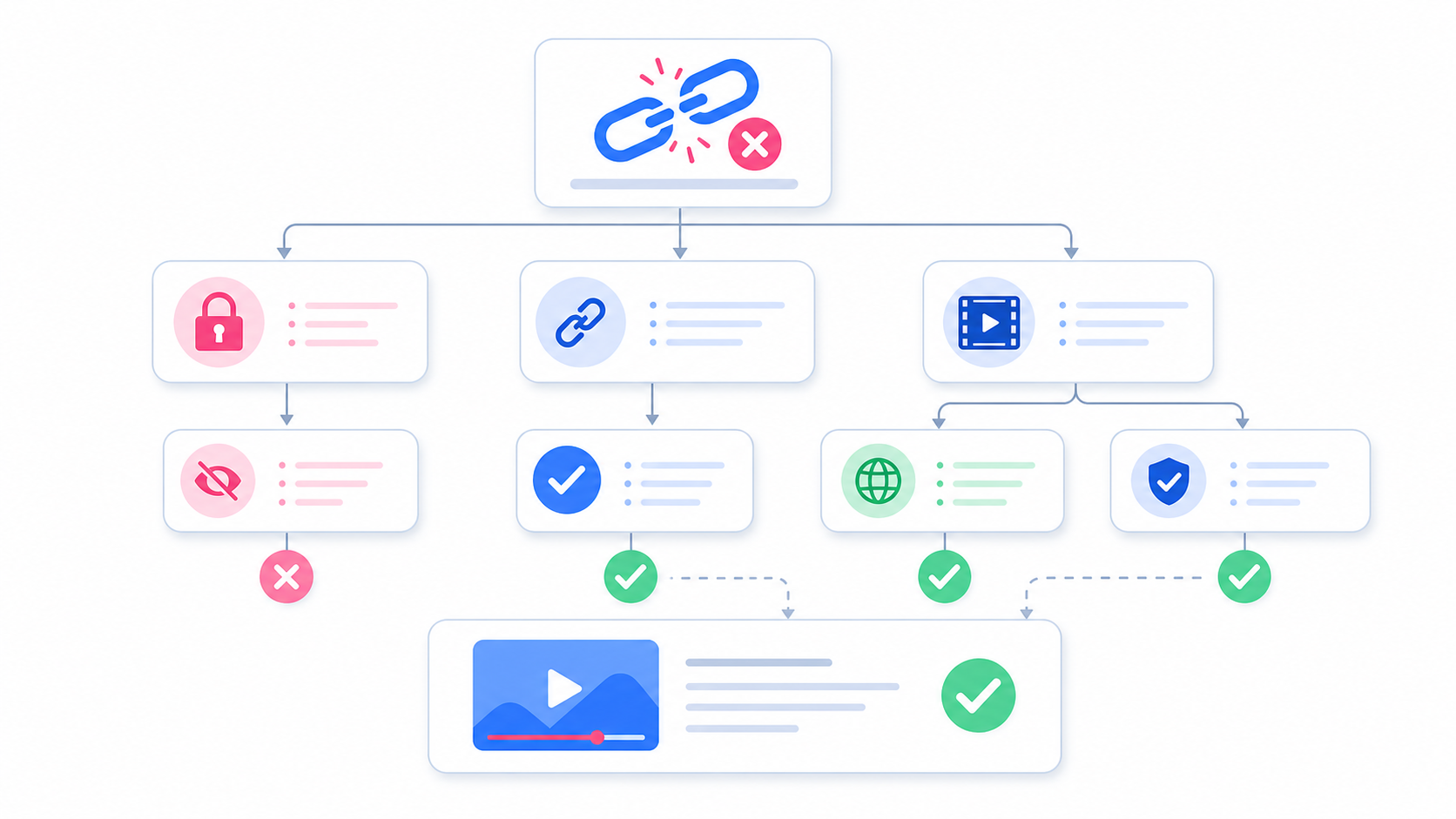
A good link usually points directly to a post or Reel. It may include: /reel/ /p/ The link should open one specific piece of content. A weak or unsupported link may point to: A profile A hashtag page Explore A Story A Highlight A private message A search result A collection or saved folder If the link opens a general page instead of one video, copy the link again.
What to Do If Copy Link Is Missing
Sometimes the copy link option may not appear the way you expect. This can happen because of app updates, account restrictions, content type, or region settings. Try this: Open the post fully before looking for the menu. Use the share button instead of the three-dot menu. Open the same post in a browser. Copy the URL from the browser address bar. Make sure the post is public. If you cannot copy a usable link, the content may not be available for public access.
Can You Copy Links to Private Videos?
You may be able to copy a private post link inside Instagram, but SaveReels cannot process private content. A copied link is not enough. The video must be public and supported. If the content requires login or follower approval, it will not work with SaveReels.
Can You Copy Story Links?
Stories and Highlights are not supported by SaveReels in this version. Even if you can copy a Story link, it may not be downloadable through the tool. SaveReels focuses on supported public video posts and Reels.
After Copying the Link
Once you have the correct link: Open the Instagram Video Downloader. Paste the URL. Preview the video. Download the MP4 file. For audio-only downloads, open the Instagram to MP3 Downloader and paste the same type of supported public video link.
FAQ
What does an Instagram video link look like?
It often includes /p/ for a post or /reel/ for a Reel.
Can I copy a link from the Instagram app?
Yes. Use the share icon or post menu and choose Copy link.
Can I copy a link from desktop?
Yes. Open the post or Reel and copy the URL from the browser address bar.
Why does my copied link not work?
It may be private, unsupported, broken, or not a direct video URL.
Can I paste a profile link into SaveReels?
No. SaveReels needs a direct public video or Reel link.