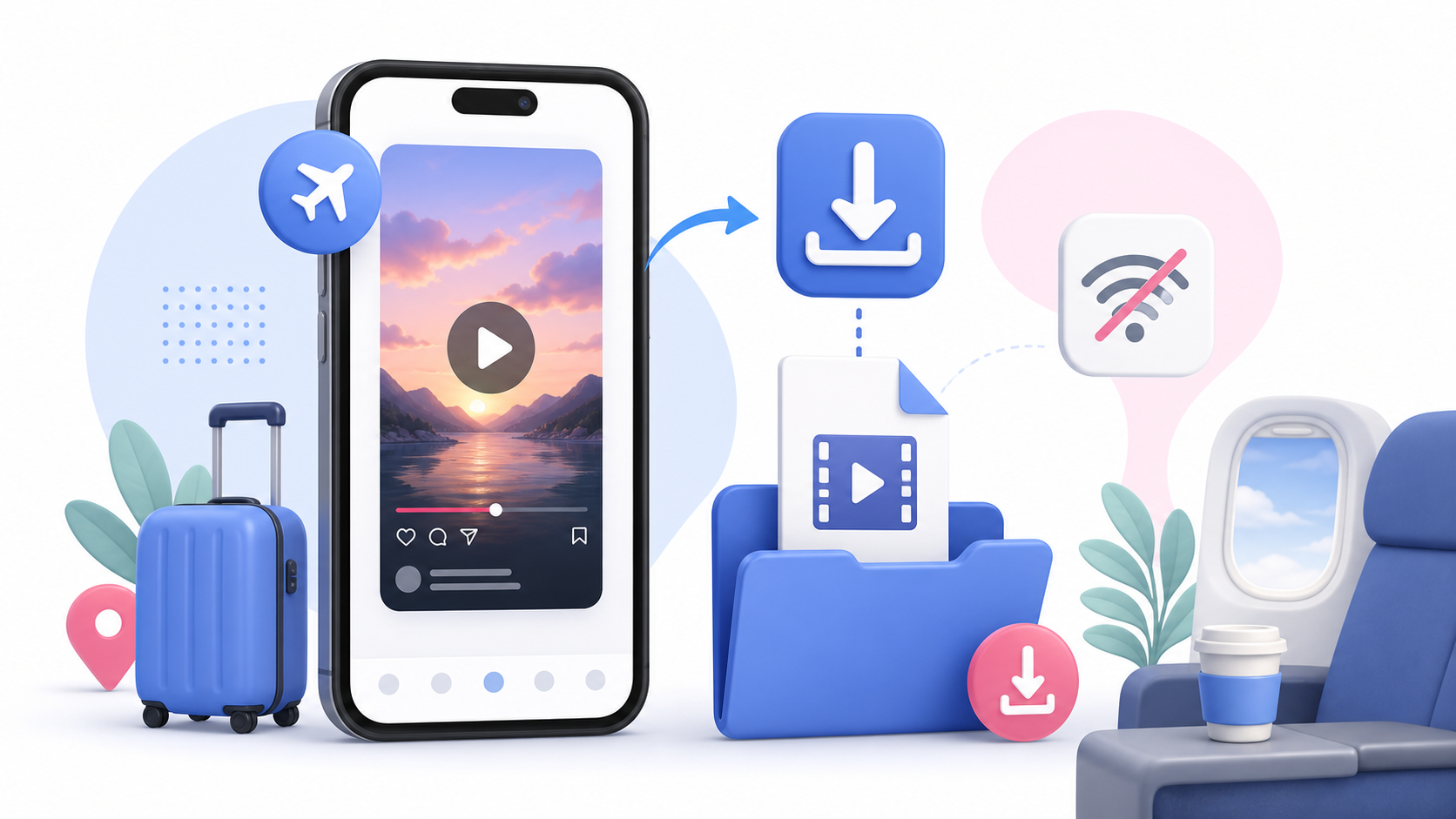
Instagram Reels are great when you have internet. But if you are traveling, commuting, working with poor signal, or building a private reference folder, you may want to save Reels for offline viewing. This guide explains the difference between saving Reels inside Instagram and downloading supported public Reels as MP4.
Saving vs Downloading Reels
There are two common ways to keep a Reel for later: Save it inside Instagram. Download it as an MP4 file. Saving inside Instagram is like bookmarking. It helps you find the Reel again in the app, but you may still need internet access. Downloading as MP4 gives you a local file on your device, which can be useful for offline viewing, backups, or personal organization.
When In-App Saving Is Enough
Use Instagram’s save feature when you simply want to find a Reel again later inside the app. This works well for: Inspiration Recipes Workouts Travel ideas Funny clips Quick bookmarks Posts you do not need as files The downside is that saved posts depend on Instagram access, your account, and the content remaining available.
When Downloading as MP4 Is Better
Downloading a Reel as MP4 is useful when you need local access. For example: You want to watch offline. You are traveling with limited internet. You want to save your own Reel backup. You need an approved campaign reference. You want to organize examples in folders. You need a file for content review. SaveReels can download supported public Reels as MP4 when the link is accessible.
Step 1: Copy the Public Reel Link
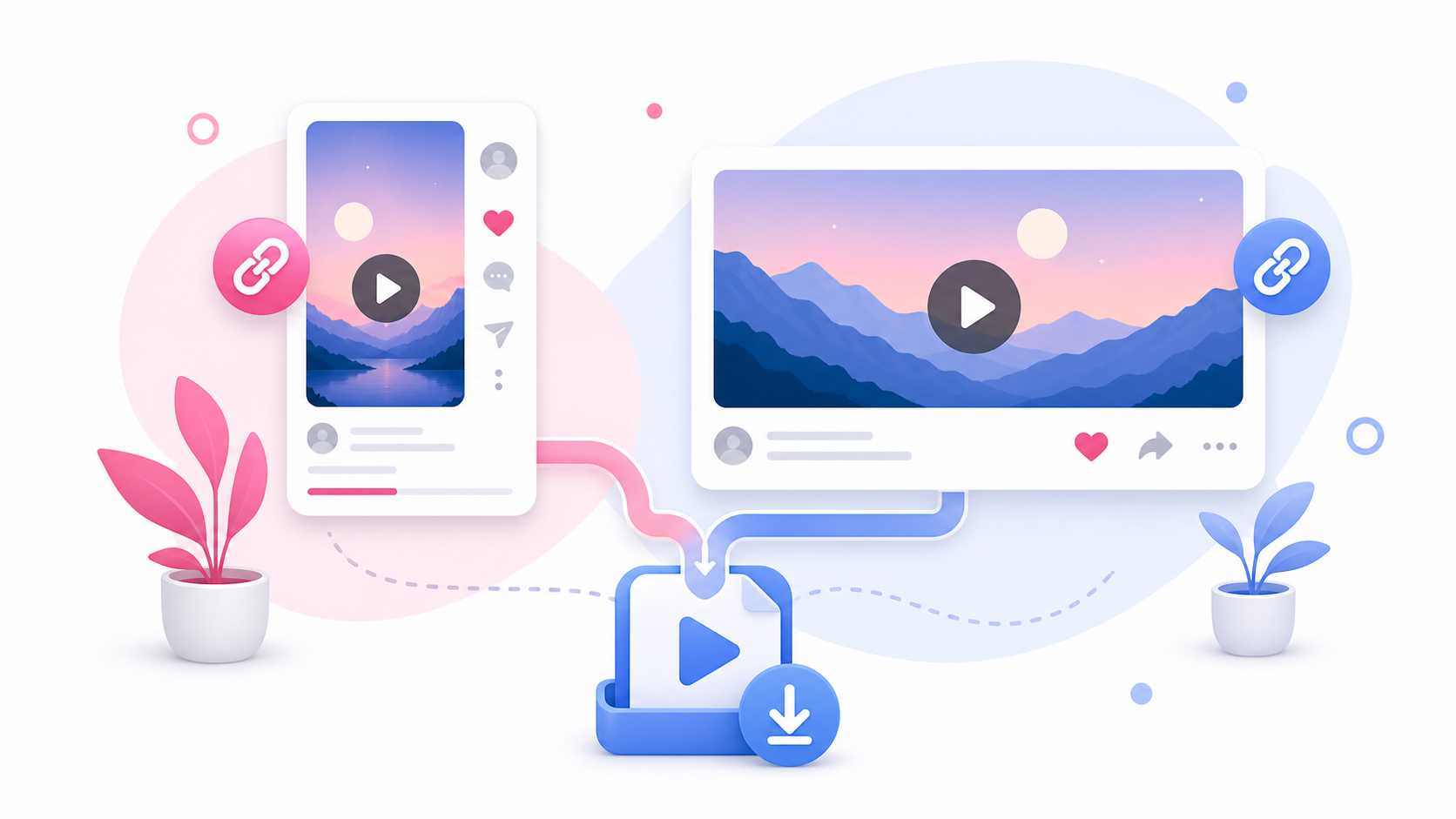
Open the Reel you want to save. Tap the share icon or menu and copy the link. Make sure the Reel is public. Private Reels, restricted content, Stories, and Highlights are not supported by SaveReels.
Step 2: Paste the Link Into SaveReels
Open the Instagram Video Downloader in your browser and paste the copied Reel URL. SaveReels will check the link and prepare a preview if the Reel is public and supported.
Step 3: Download the Reel as MP4
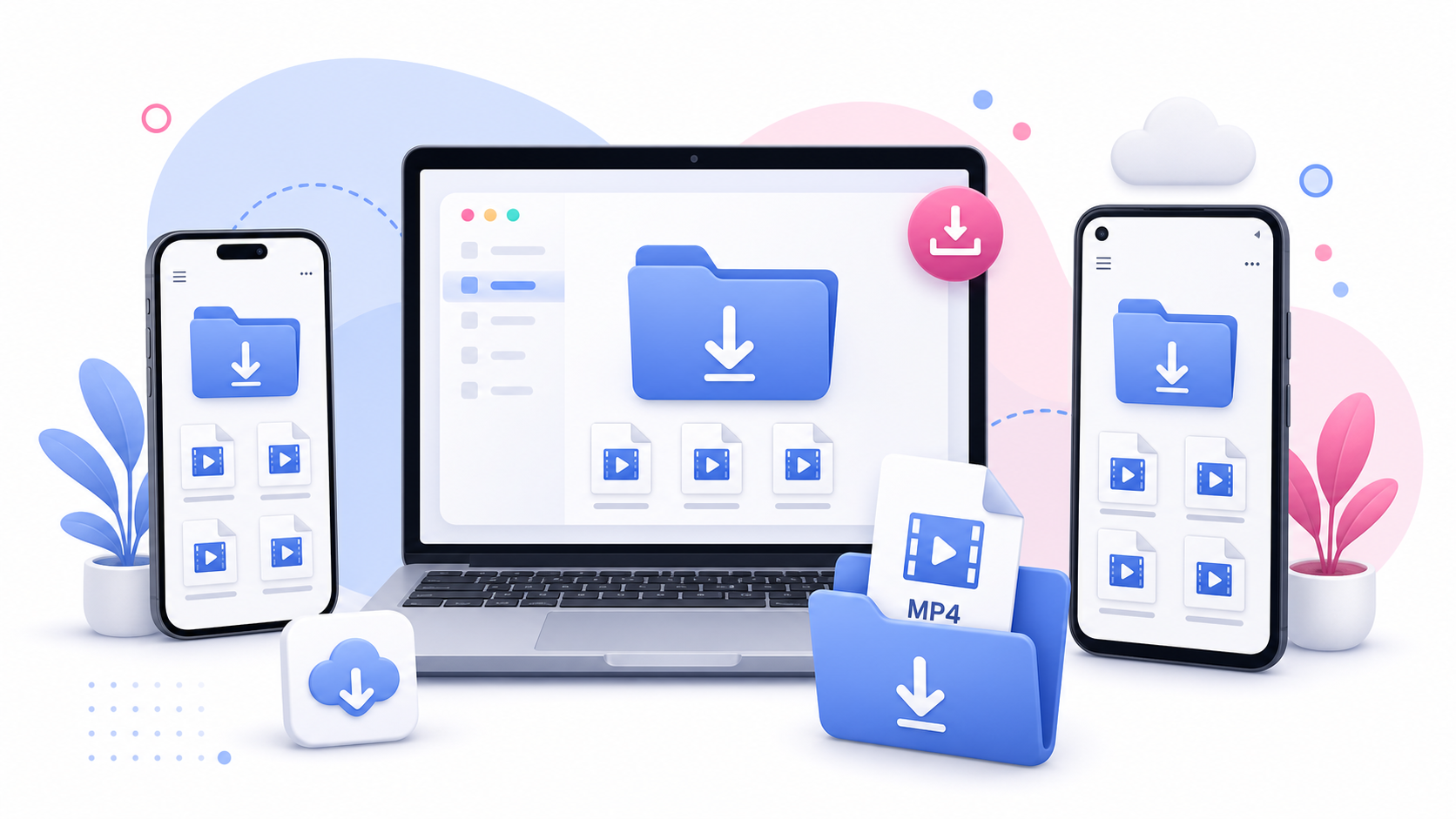
After the preview appears, download the Reel as MP4. On iPhone, check the Files app or Safari downloads. On Android, check Files, My Files, Downloads, or browser downloads. On desktop, check your Downloads folder.
Can You Save Reel Audio Offline?
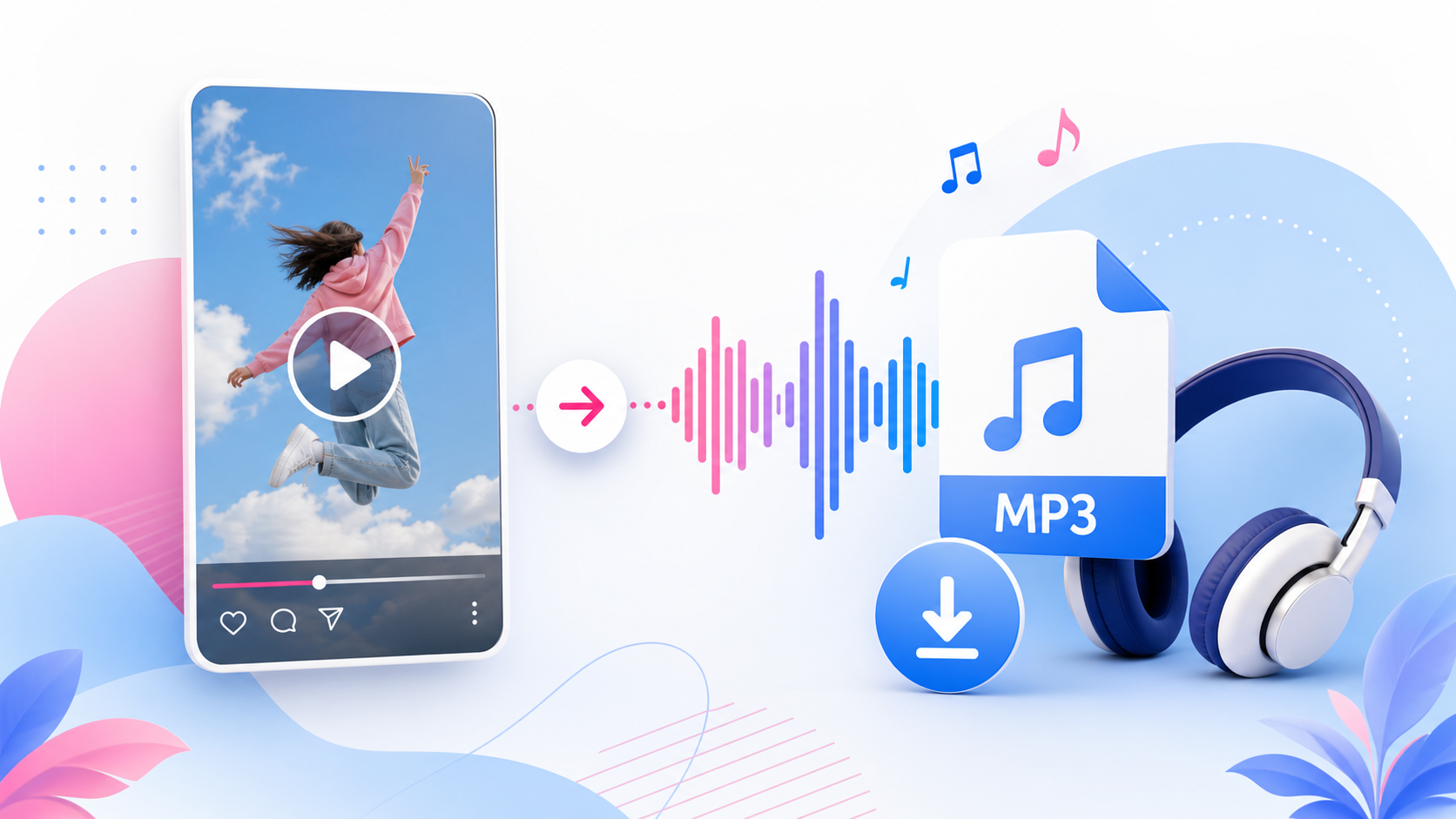
Yes. If you only need the sound from a supported public Reel, use the Instagram to MP3 Downloader. This can be useful for voiceover reference, audio notes, or saving your own Reel audio.
What If the Reel Is Private?
Private Reels are not supported. SaveReels does not ask for Instagram login and does not bypass privacy settings. If you need a private Reel, ask the owner to send the original video file or give permission to use it.
What If the Reel Disappears Later?
If you saved a Reel only inside Instagram, it may disappear if the creator deletes it, makes it private, or changes access settings. If you downloaded a supported public Reel as MP4, you have a local copy. But you are still responsible for using it legally and respectfully.
Responsible Offline Viewing
Saving a Reel for offline viewing does not mean you can repost it freely. Only repost, edit, or redistribute content if you own it, have permission, or are otherwise allowed to use it. For personal viewing and private reference, keep the file organized and respect creator rights.
How to Organize Offline Reels
Create folders based on purpose: Travel Ideas Recipe Reels Workout Reels Editing Inspiration Client References My Reels Backup Audio Ideas Rename files after downloading so they are easier to find.
FAQ
Can I save Instagram Reels for offline viewing?
Yes, supported public Reels can be downloaded as MP4 with SaveReels.
Is saving a Reel inside Instagram the same as downloading?
No. Saving bookmarks the Reel inside Instagram. Downloading creates a local file.
Can I download private Reels?
No. SaveReels supports public Reel links only.
Where is the downloaded Reel saved?
Usually in your browser’s Downloads folder or your phone’s Files app.
Can I repost a downloaded Reel?
Only if you have permission or the right to do so.