
There are two separate ways to save the prepared file: Download Video transfers it using your browser; Prepare file → Save or share opens the device’s file-sharing menu. Neither button can confirm that you chose a gallery destination.
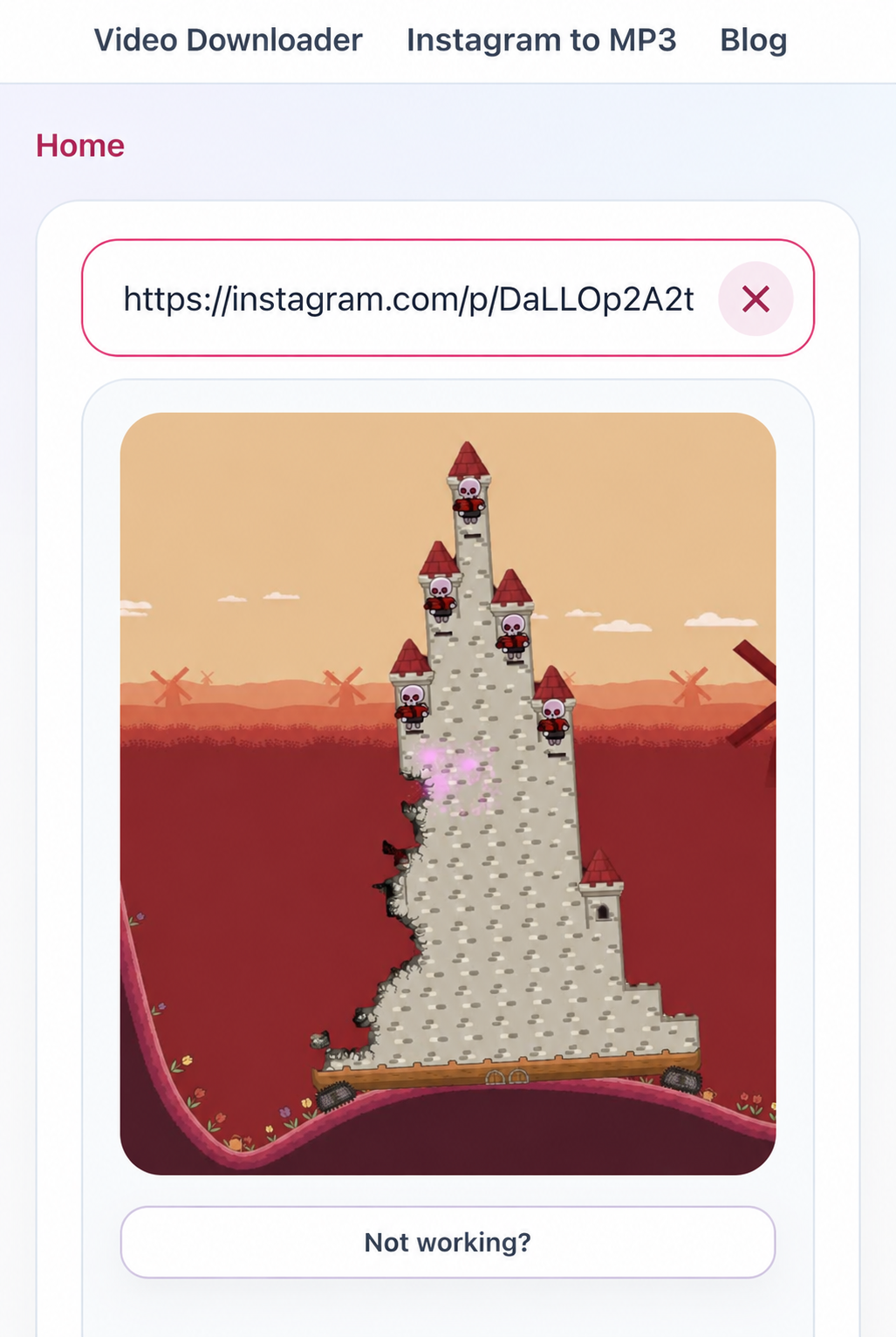
Method 1: Download Video
- Paste the public Instagram link into Instagram Video Downloader and select Download to load the preview.
- Select Download Video. Keep the tab open while its spinner is running.
- Look in the browser’s download list for a completed MP4 transfer. Allow a download if the browser asks.
- If the video is not visible in Photos or your gallery app, look in Files or Downloads first. Open it to check that it plays correctly. A checkmark on the website does not confirm that the browser saved the file.
iPhone: Files and Photos are different apps
Safari downloads normally go to a Downloads folder in Files. Its location depends on Safari settings: iCloud Drive, On My iPhone or another chosen folder. Open Files → Browse and inspect the relevant Downloads folder; Recents can help. The website cannot choose this setting for you.
For a playable MP4 already in Files, open the file, use Share, and choose Save Video if that action is offered. Then check Photos. If the action is absent, verify that the downloaded item is a playable, complete video. This is a device action, not a guaranteed SaveReels feature.
Apple: where to find downloaded files on iPhone or iPad
Method 2: Prepare file → Save or share
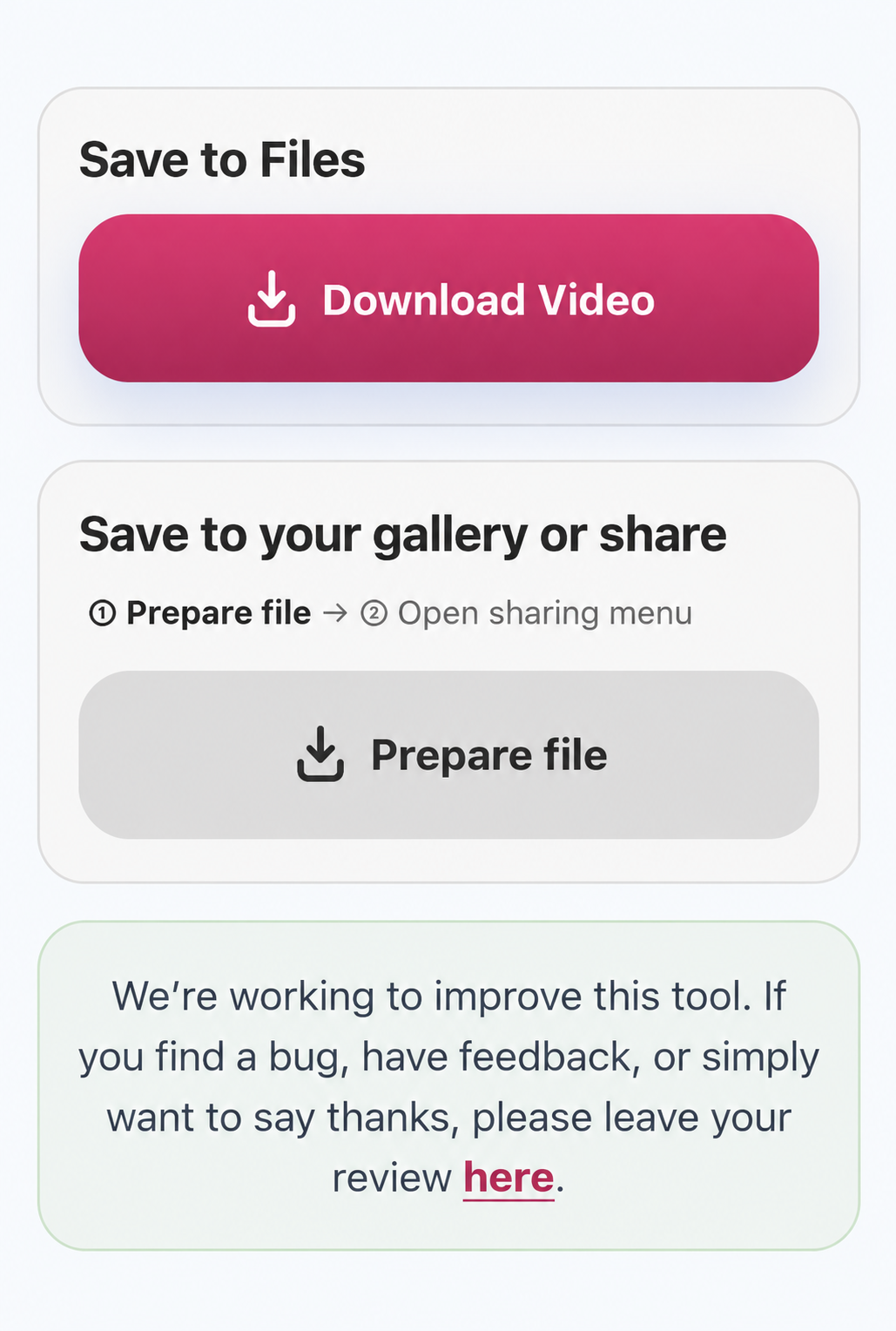
- In the second block under the preview, tap Prepare file. The download icon and the highlighted first step identify this stage.
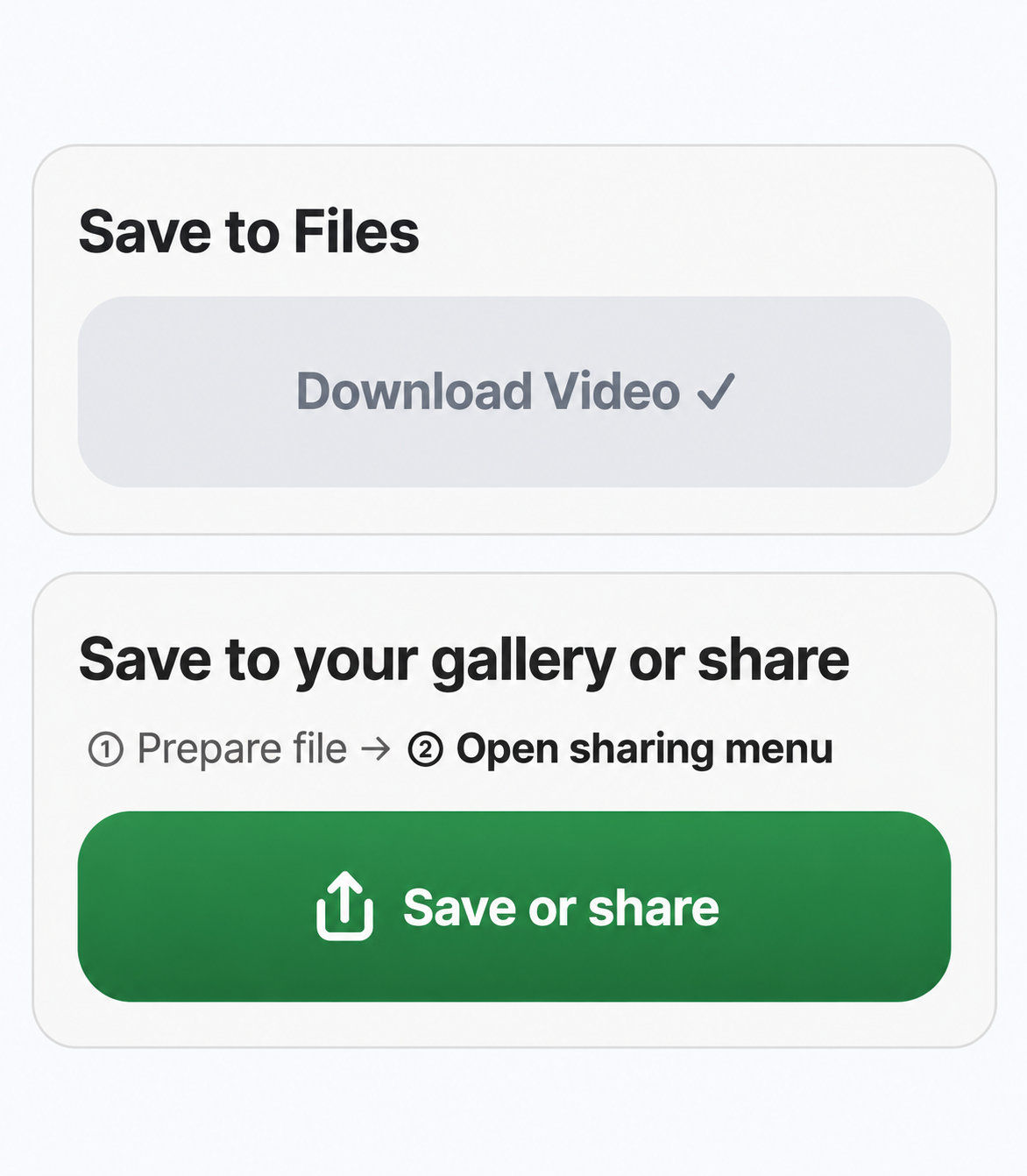
- Wait for the file to finish preparing. The second step becomes highlighted; the button turns green and reads Save or share with a share icon.
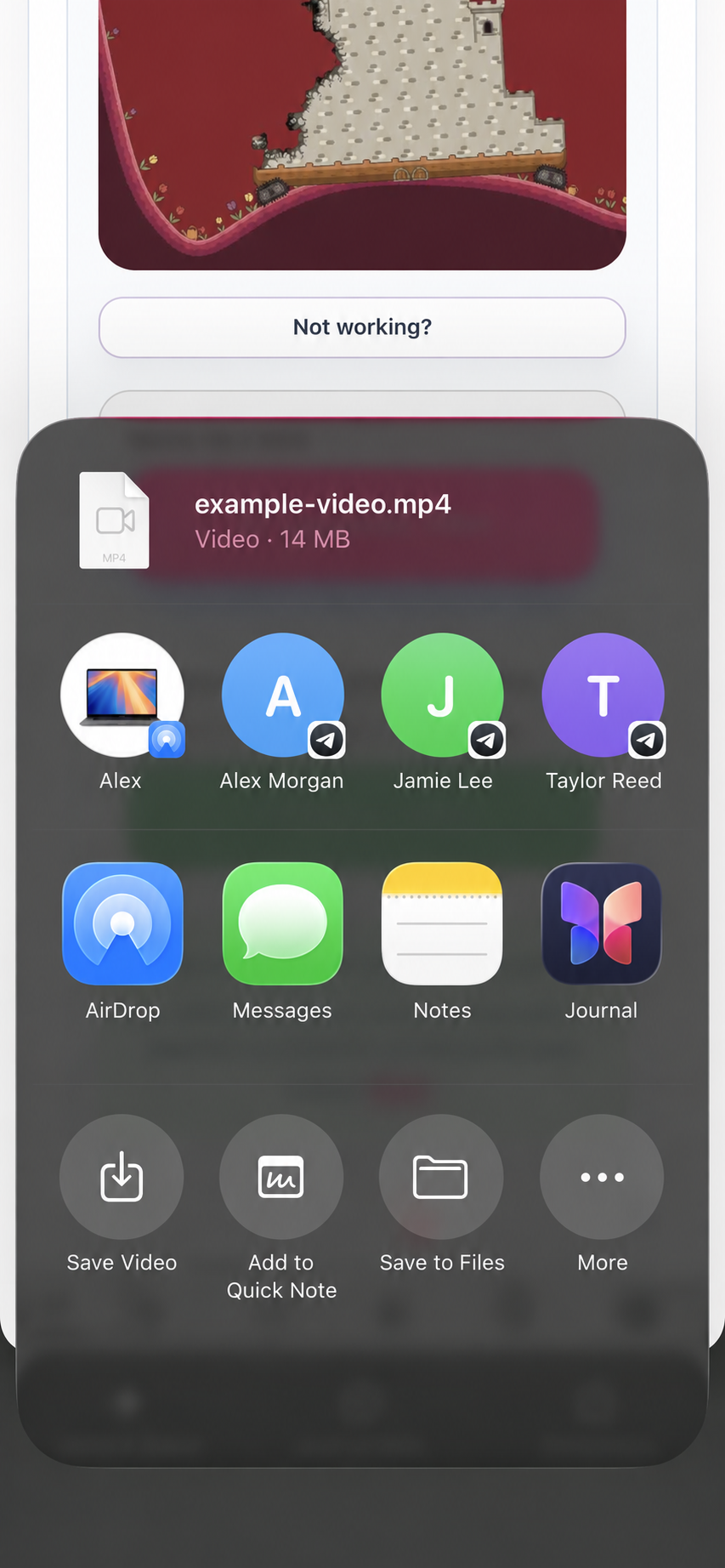
- Tap Save or share. This fresh tap opens the system menu; preparation does not open it automatically.
- Select a destination offered by the device. If Save Video is present, it can save a supported MP4 to Photos. Otherwise use a file destination or another sharing app. Cancelling the menu leaves the button usable.
Android: Downloads, Gallery and sharing
Start in Chrome’s Downloads screen or your file manager (Files or My Files, depending on the phone). An MP4 may be in Downloads before your gallery app lists it. Check the actual file and play it rather than assuming the website has added it to Gallery.
The mobile sharing block can be labelled More save options on Android. It still uses the same two steps. Android’s destinations depend on the installed apps and browser; a direct gallery-saving option is not guaranteed. If none is appropriate, keep the copy in Downloads and manage it with the phone’s file or gallery app.
Google Chrome: download, find and share files on Android
When the sharing button is missing or fails
- The block is mobile-only and appears only if the browser supports sharing this file type. On desktop or unsupported browsers, use Download Video.
- SaveReels limits file sharing to 50 MiB (52,428,800 bytes). Larger files must use Download Video. A supported browser may impose additional restrictions.
- Keep the tab open during preparation. If preparation fails or times out, retry once or use Download Video; cancelling the sharing menu does not mean the browser download failed.
- Only a fresh click after preparation invokes sharing. The site shares the actual MP4 or MP3 file, not just the Instagram URL.
MP3 and offline copies
MP3 is audio: find it in Files or Downloads and play it with a compatible audio app. It is not added automatically to Photos or your music library. Once a downloaded MP4 or MP3 plays, you can keep that local copy for offline use. The original Instagram link and SaveReels’ temporary download URL are not offline copies.
If the file is missing
Check your browser’s Downloads list for a completed transfer. If the Download Video button is still active, select it. If it is grey with a checkmark and no transfer started, reload the page, paste the original Instagram URL and prepare the video again. Prepared download links are temporary. A zero-byte file or an incomplete transfer is not a usable copy.