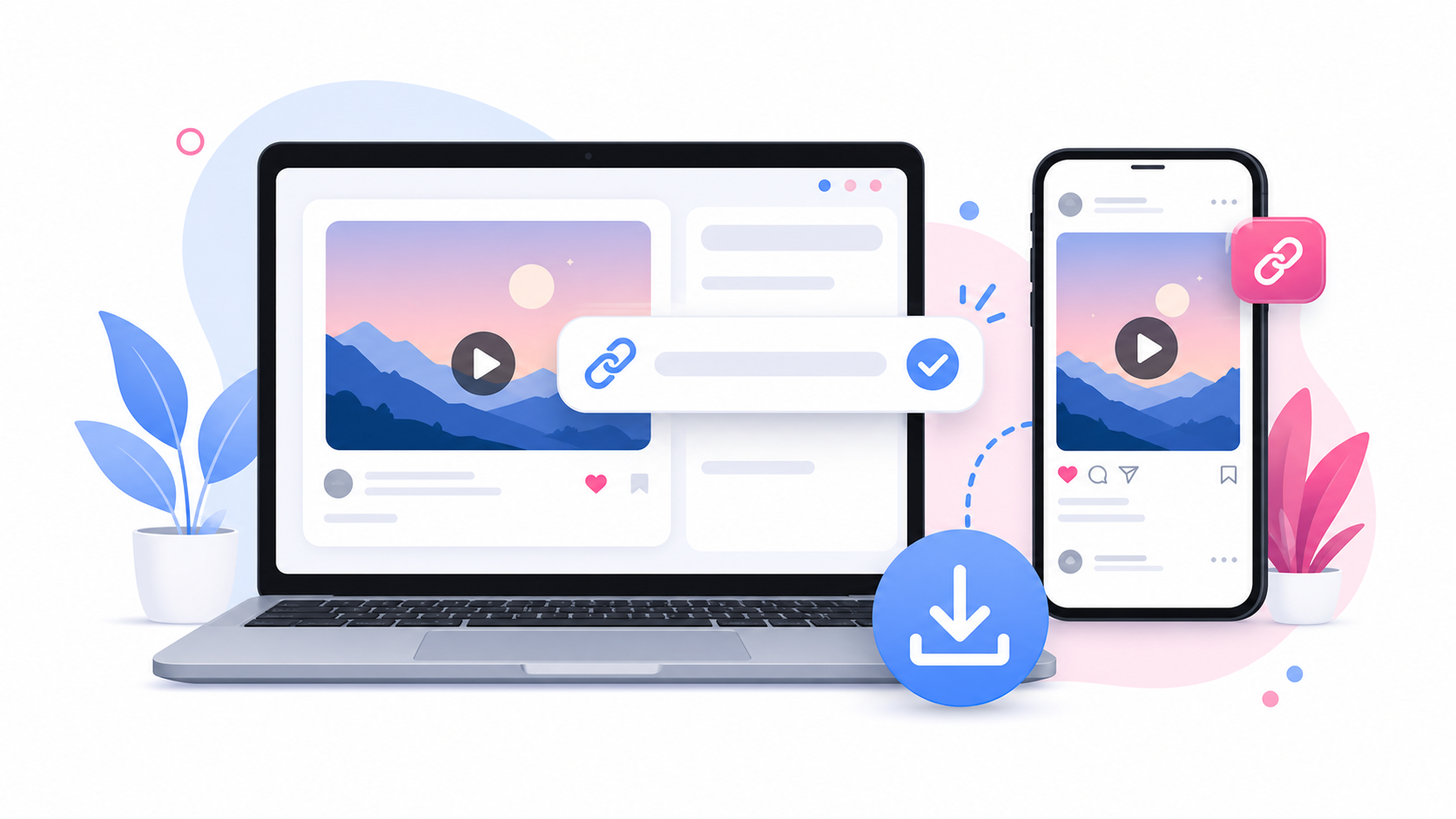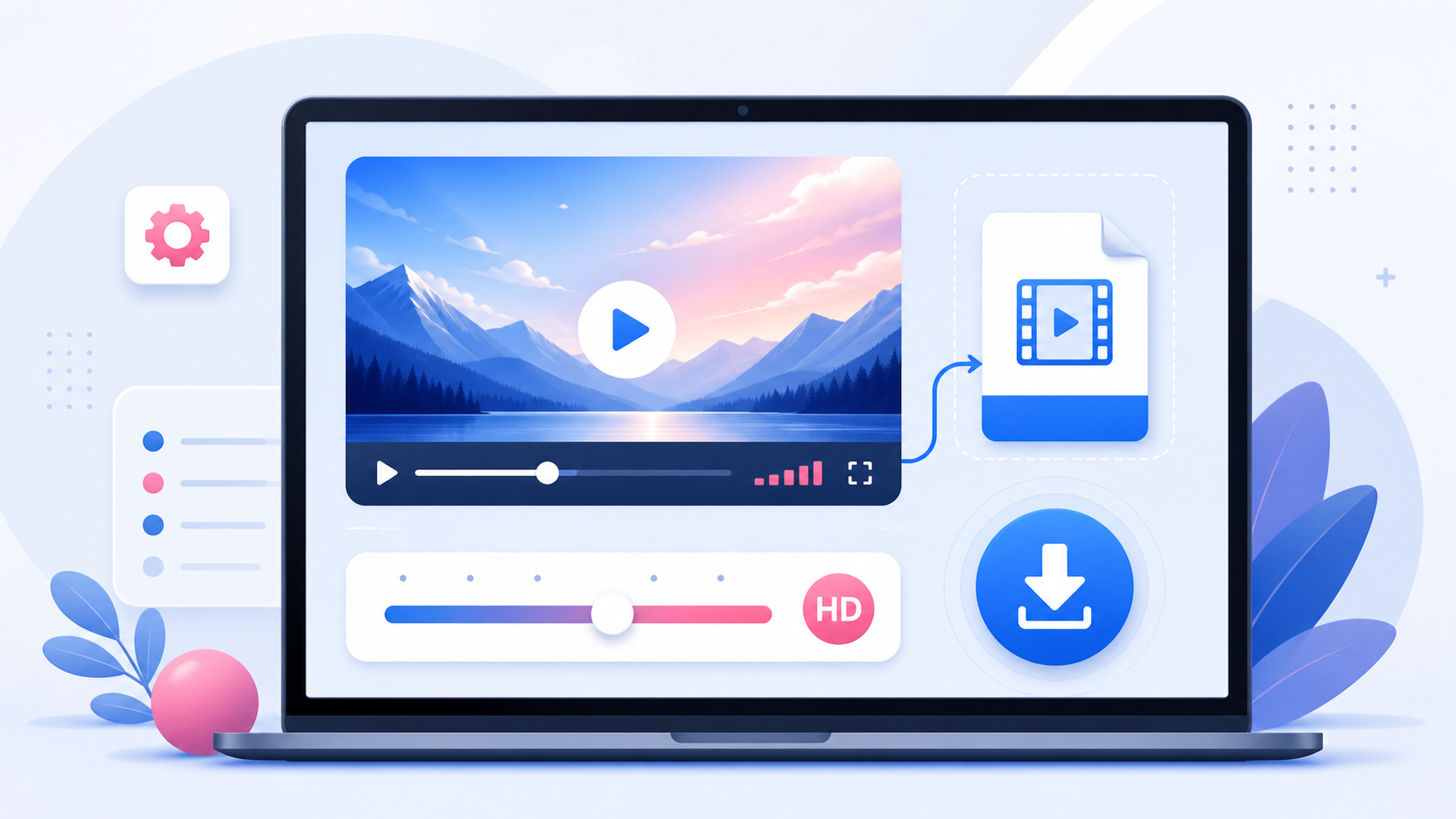
Downloading Instagram videos on Android is simple when you use a browser-based tool. You can copy a public Instagram video link, paste it into SaveReels, preview the file, and download it as MP4 without installing a separate app. This guide shows how to download supported Instagram videos and Reels on Android, where to find the downloaded file, and how to fix common problems.
Can You Download Instagram Videos on Android?
Yes. SaveReels works in modern Android browsers, including Chrome and many default mobile browsers. You can download supported public Instagram video posts and Reels directly to your device. You do not need to log in to Instagram through SaveReels. You also do not need to install an APK, extension, or third-party downloader app.
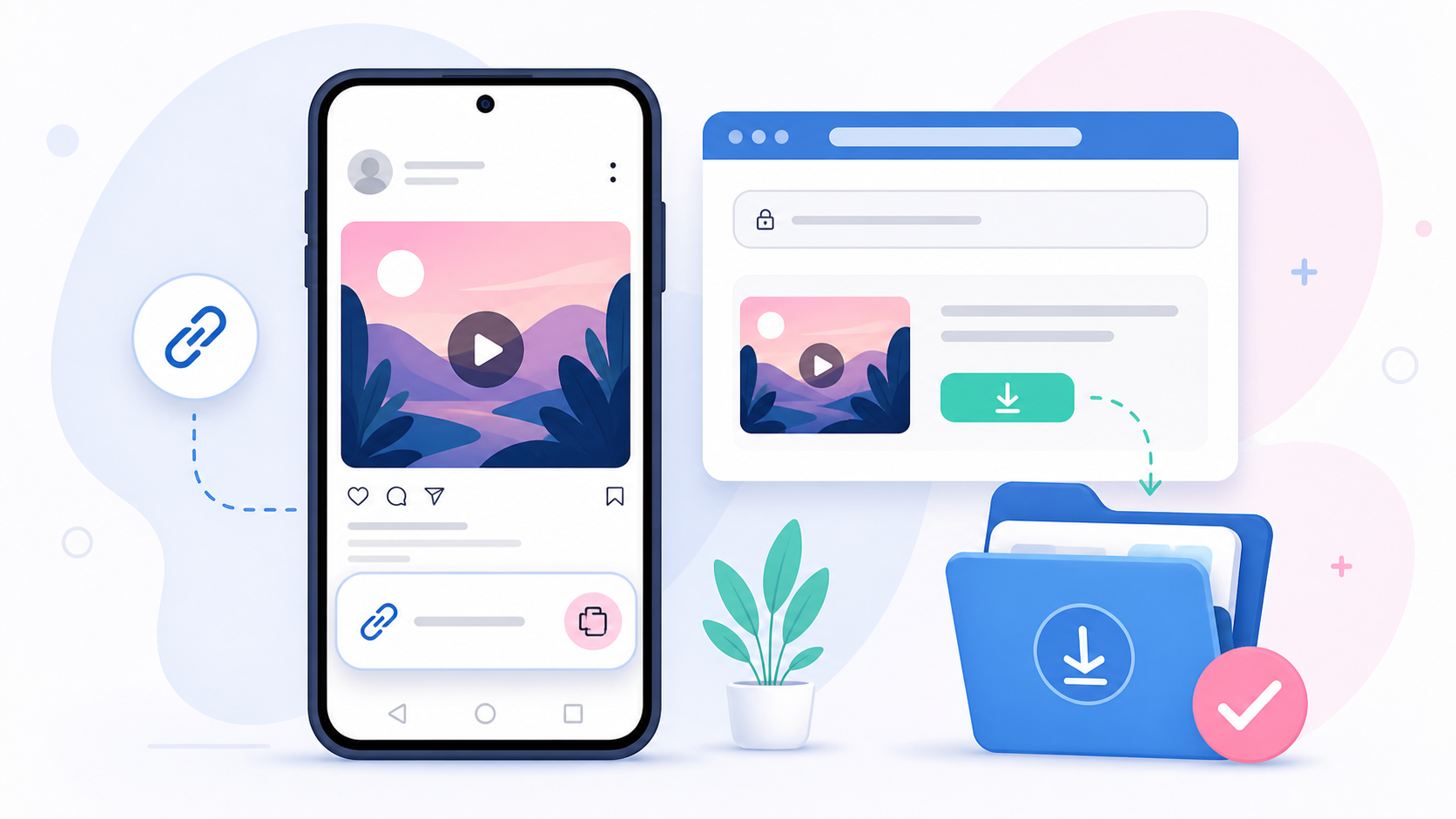
Step 1: Copy the Instagram Video Link
Open Instagram on your Android phone and find the video or Reel you want to download. Tap the share icon or menu near the post and choose the option to copy the link. The exact button name may vary depending on the Instagram app version, but the goal is the same: copy the direct URL for that video or Reel. Make sure the link points to a public video. SaveReels does not support private posts, Stories, Highlights, image posts, or carousel posts.
Step 2: Open SaveReels in Your Browser
Open Chrome or your preferred Android browser and go to the Instagram Video Downloader. Paste the copied Instagram link into the input field. SaveReels will check the URL and show a preview if the link is public and supported. A preview helps you confirm that the correct video is ready before downloading.
Step 3: Download the MP4 File
Tap the MP4 download button. Your browser may ask for permission to download the file or may start the download automatically. If prompted, confirm the download. Wait until the download finishes before closing the browser tab. Larger videos may take longer depending on your connection speed and the file size.
Where Are Downloaded Instagram Videos Saved on Android?
On most Android phones, downloaded files can be found in the Files app, Downloads app, My Files app, or your browser’s downloads section. The exact name depends on your phone brand and Android version. Try these locations: Files app → Downloads My Files → Downloads Chrome → Downloads Recent files Internal storage → Download If you cannot find the file, use your file manager’s search option and search for “.mp4” or sort recent downloads by date.
Why Android Downloads Sometimes Look Missing
Android devices can handle downloads differently depending on browser, manufacturer, storage settings, and file manager app. A downloaded video may not appear in your Gallery immediately, even if the MP4 file is already saved. If the video is in Downloads but not visible in Gallery, open the file from your file manager. You may also be able to move it to a video folder or share it to another app.
Tips for Better Android Downloads
For the smoothest experience: Use Chrome if your default browser blocks downloads. Keep the tab open until the download begins. Check that your phone has enough free storage. Turn off aggressive battery-saving mode while downloading large videos. Use Wi-Fi for longer videos. Avoid downloading the same file repeatedly if the first download is still processing.
What If the Instagram Video Link Does Not Work?
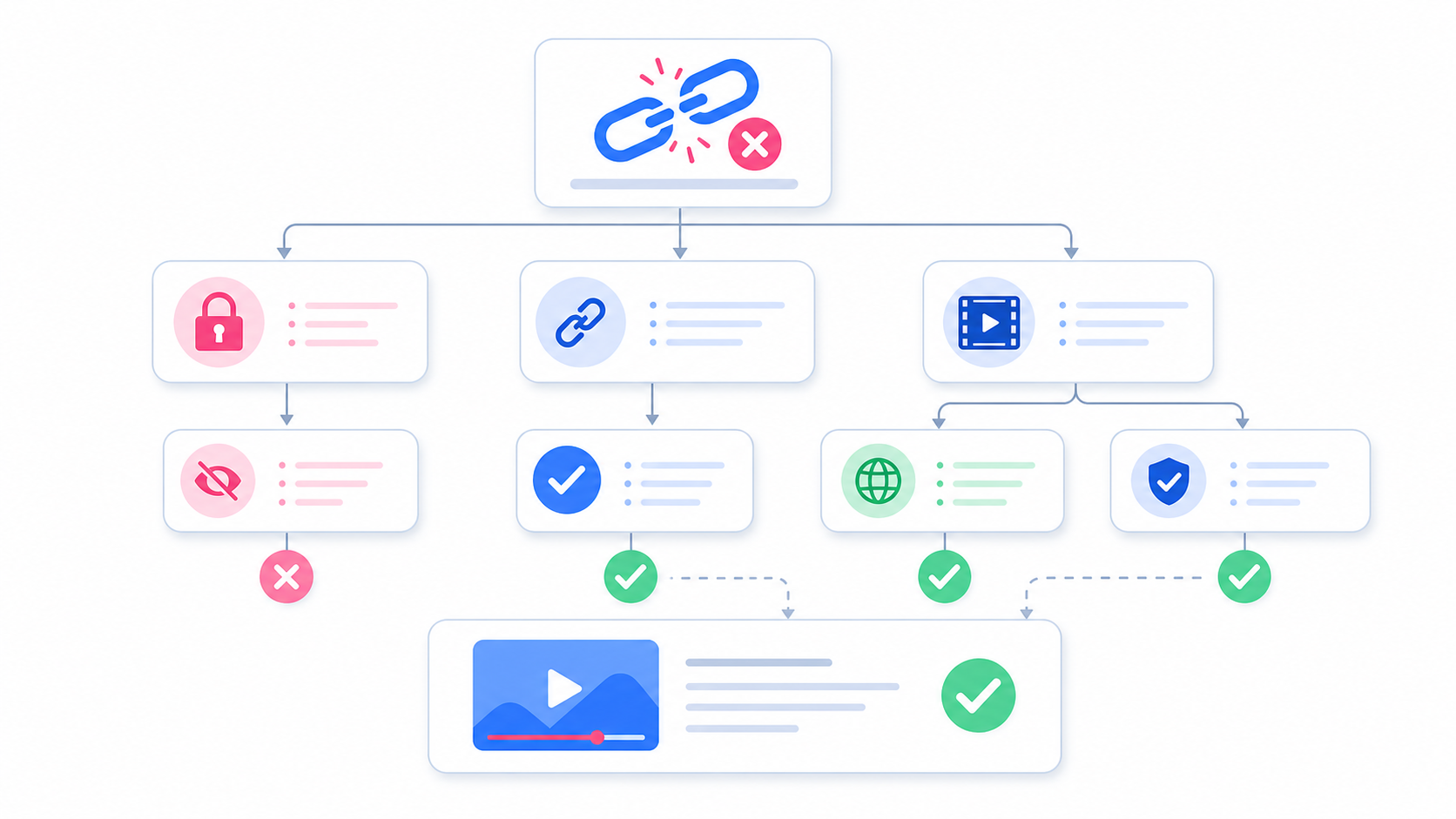
Most failed downloads happen because the link is not supported or the content is not public. Try this checklist: Open the Instagram link in your browser. Check whether it loads without login. Copy the direct video or Reel link again. Make sure the link is not a Story, Highlight, image, carousel, or profile page. Refresh SaveReels and try again. If the post was deleted, restricted, or made private, it may not be downloadable.
Can You Download Instagram Videos as MP3 on Android?
Yes. If you only need the audio from a supported Instagram video or Reel, use the Instagram to MP3 Downloader. Paste the same type of public video link and choose the MP3 option. This is useful for saving audio references, voice clips, sound ideas, or your own Reel audio for editing workflows.
Responsible Use on Android
Downloading a public Instagram video does not automatically give you permission to repost it. Use downloaded videos for personal reference, backup, or content planning unless you own the content or have permission from the creator.
FAQ
Do I need to install an Android app?
No. SaveReels works directly in your mobile browser.
Where is my downloaded Instagram video?
Check the Files, My Files, or Downloads app. You can also check your browser’s downloads list.
Can I download Instagram Reels on Android?
Yes, supported public Reel links can be downloaded as MP4.
Can I download private Instagram videos?
No. SaveReels supports public Instagram video and Reel URLs only.
Why does the file not appear in Gallery?
It may be saved in your Downloads folder first. Open it from your file manager or move it to a media folder if needed.