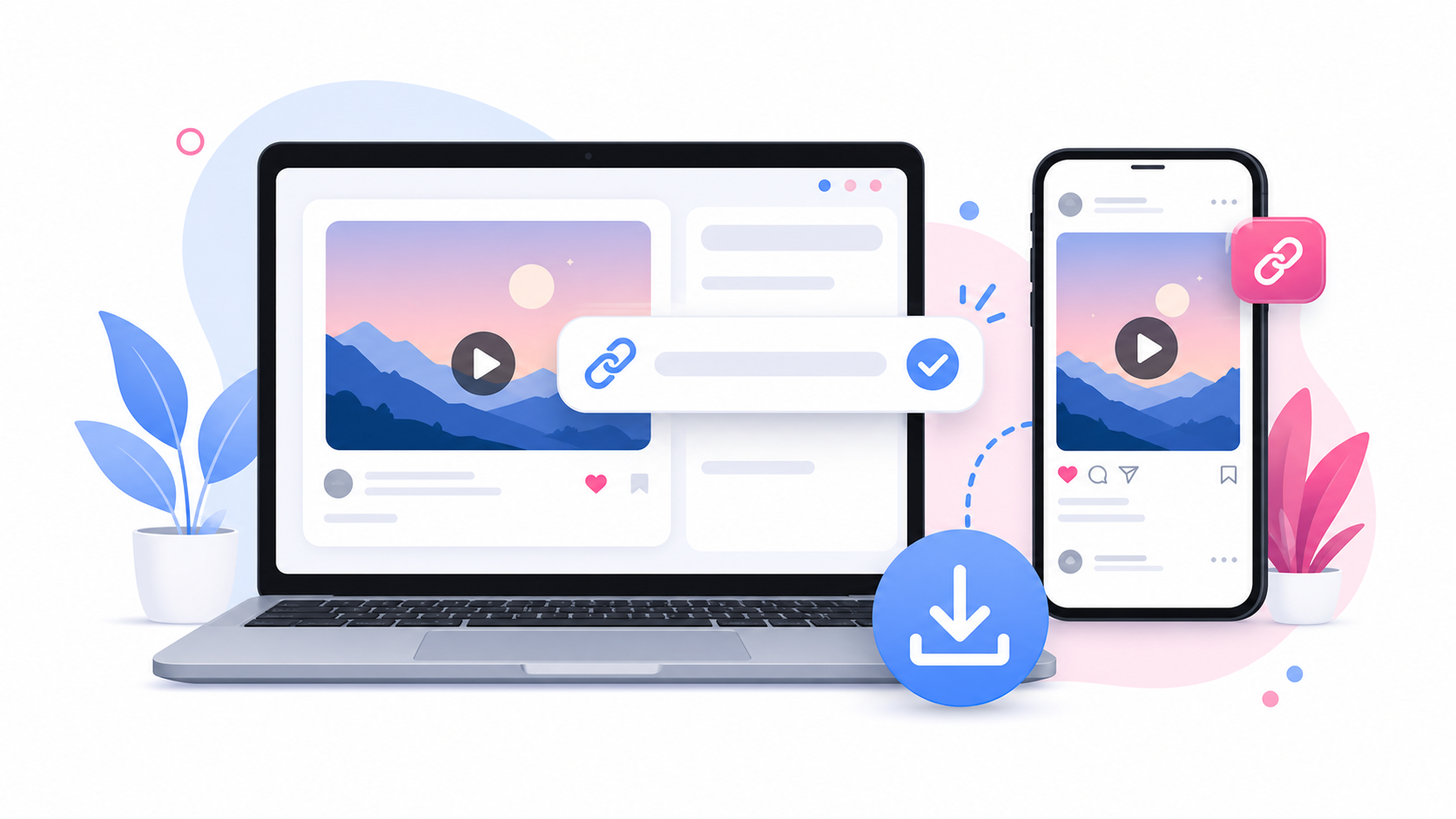
Downloading Instagram videos on iPhone can be confusing the first time because saved files do not always appear in the Photos app immediately. In many cases, videos downloaded from Safari are saved to the Files app first. This guide explains how to download supported public Instagram videos and Reels on iPhone using SaveReels, where to find your downloaded file, and what to do if the download does not appear where you expect.
Can You Download Instagram Videos on iPhone?
Yes. You can download supported public Instagram videos and Reels on iPhone through a browser such as Safari, Chrome, or another mobile browser. You do not need to install a separate downloader app. You also do not need to log in to Instagram through SaveReels. The tool works with public Instagram video links that can be accessed through a supported URL.
Step 1: Copy the Instagram Video Link
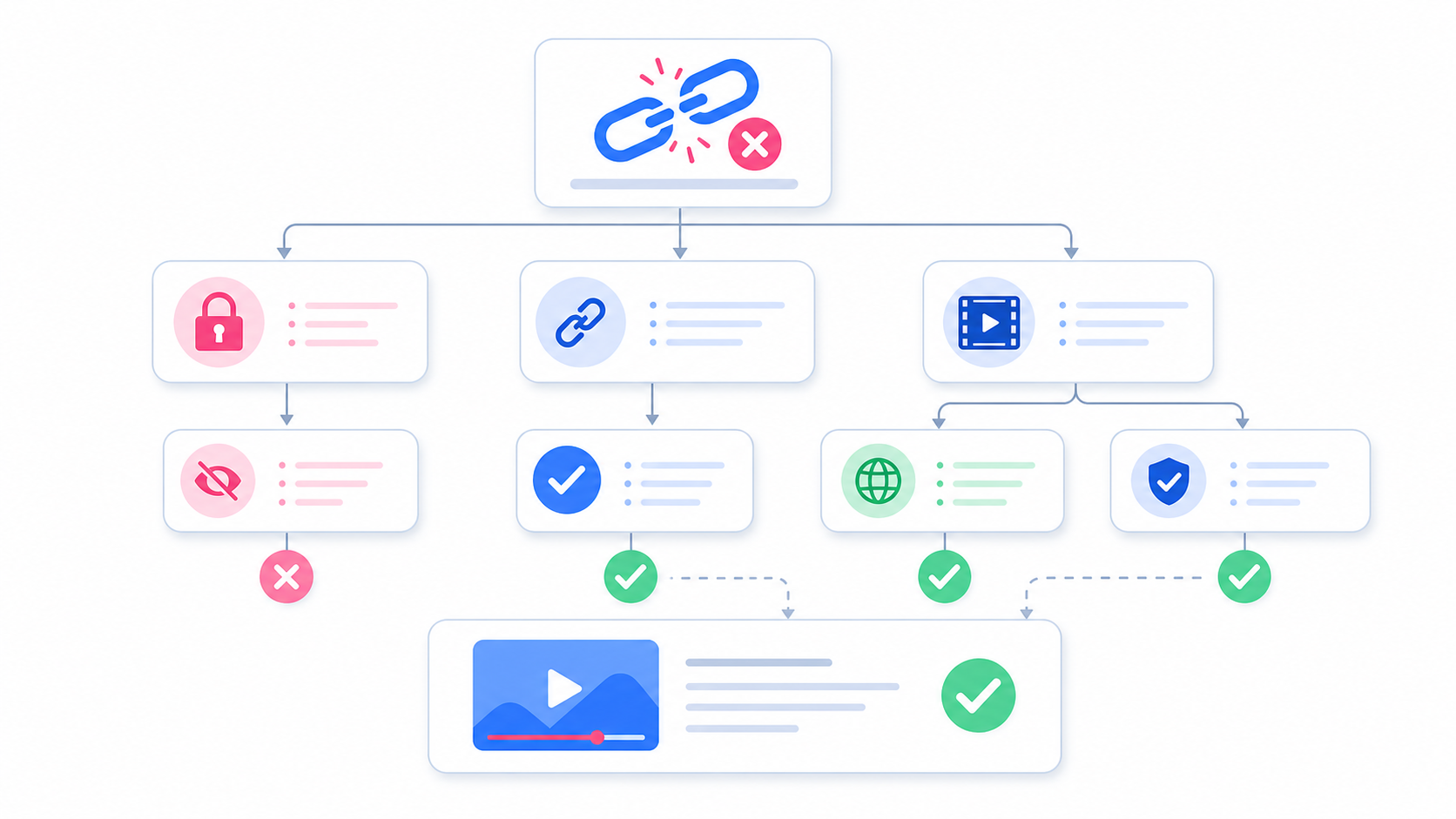
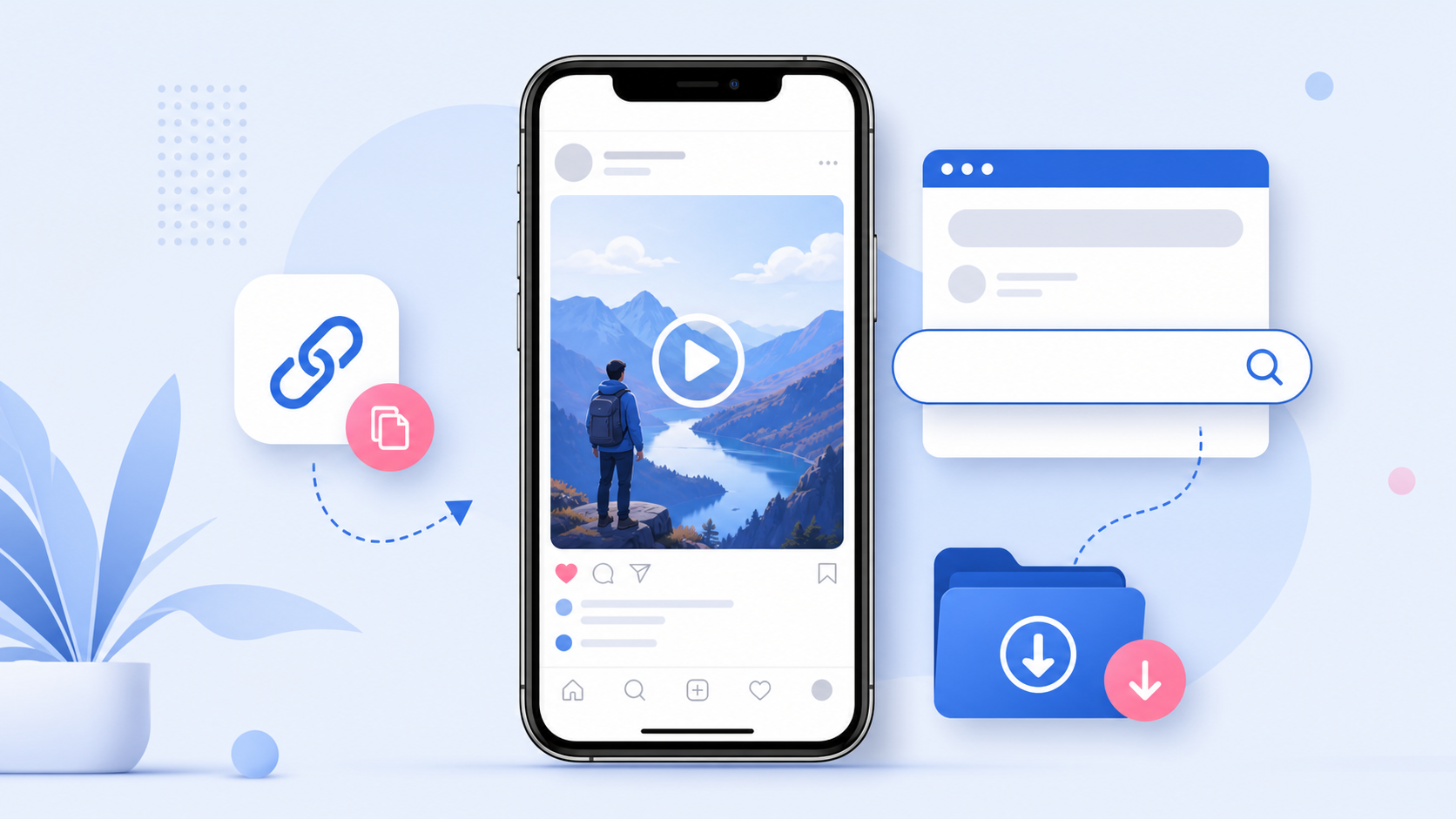
Open Instagram on your iPhone and find the public video or Reel you want to download. Tap the share icon or three-dot menu near the post, then choose the option to copy the link. The link will be copied to your iPhone clipboard. Before moving to the next step, make sure the link is for a specific video or Reel. SaveReels does not support profile pages, Stories, Highlights, image posts, private posts, or carousels in this version.
Step 2: Open SaveReels in Safari
Open Safari or your preferred iPhone browser and go to the Instagram Video Downloader. Paste the copied Instagram link into the input field. SaveReels will check the link and prepare a preview if the video is public and supported. Previewing the content is useful on iPhone because it helps you confirm the video before downloading it to your device.
Step 3: Download the Instagram Video
After the preview loads, tap the MP4 download option. Depending on your iPhone, iOS version, and browser settings, the file may open in a new tab, start downloading automatically, or ask you where to save it. If Safari asks for confirmation, allow the download. Once the download finishes, the video should be available through the browser’s download list or the Files app.
Where Are Downloaded Instagram Videos Saved on iPhone?
On iPhone and iPad, downloaded files are usually found in the Files app. Open Files, tap Browse, then check the Downloads folder. Depending on your settings, Downloads may be under iCloud Drive or On My iPhone. If you downloaded the video through Safari, you may also see a download icon near the Safari address bar. Tap it and choose Downloads to view recent files. If you want the video to appear in Photos, open the downloaded file from Files, tap the share button, and choose the option to save the video to Photos if available.
Why the Video May Not Save to Photos Automatically
Many iPhone users expect every downloaded video to appear in the Photos app. However, browser downloads are often treated as files first. That means the MP4 may be saved in Files instead of Photos. This is normal. It does not mean the download failed. Check these locations: Files app → Browse → Downloads Files app → Recents Safari download list iCloud Drive → Downloads On My iPhone → Downloads
Tips for a Smooth iPhone Download
Use Safari if another browser blocks the file. Make sure your iPhone has enough storage space. Keep the browser tab open until the download starts. If the file opens instead of downloading, look for the share button and save it from there. If your iPhone asks whether you want to view or download the file, choose download.
What If the Instagram Link Does Not Work?
If SaveReels cannot process the link, the most common reason is that the content is not publicly available or the URL type is not supported. Try this: Open the link in a private browser tab to check if it is public. Copy the link again from Instagram. Make sure it is a Reel or single-video post. Avoid Stories, Highlights, carousels, image posts, and private account content. Refresh SaveReels and try again.
Can You Download Instagram Audio on iPhone?
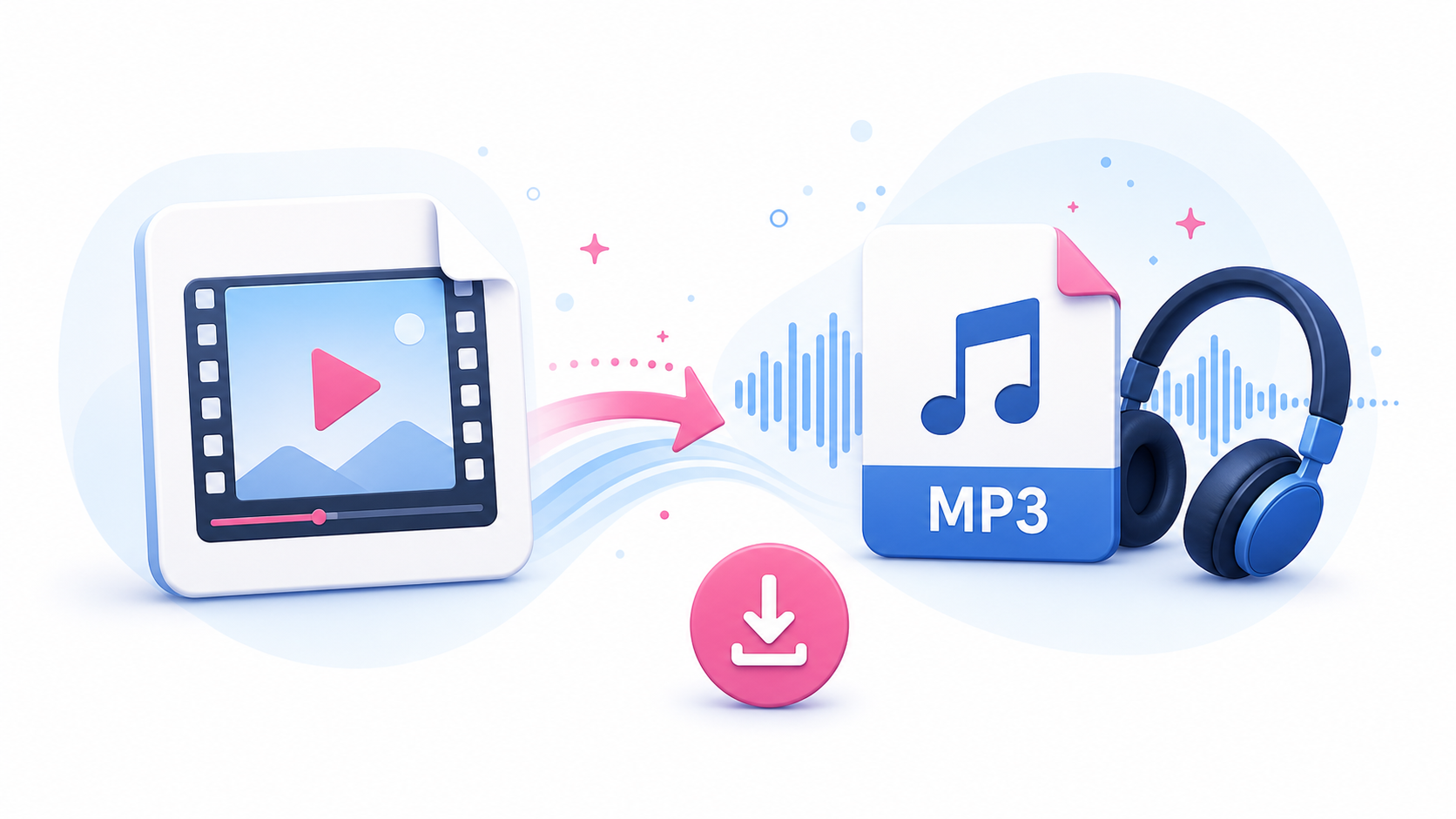
Yes. If you only need the audio from a supported Instagram video or Reel, use the Instagram to MP3 Downloader. The process is similar: copy the public video link, paste it into the MP3 tool, preview, and download the audio file.
Responsible Use on iPhone
Downloading a video for personal viewing, backup, or reference is different from reposting it publicly. Only reuse Instagram content when you own it, have permission, or are legally allowed to do so. If the video belongs to another creator, ask before reposting or editing it for public use.
FAQ
Do I need an app to download Instagram videos on iPhone?
No. SaveReels works in your browser, so you do not need to install a separate downloader app.
Why can’t I find the downloaded video in Photos?
The video may be in the Files app instead. Check the Downloads folder first.
Can I download private Instagram videos on iPhone?
No. SaveReels supports public Instagram video and Reel links only.
Can I use Chrome instead of Safari?
Yes, but Safari is often the most predictable option for downloads on iPhone.
Can I save the video to Photos?
Usually yes. Open the downloaded MP4 in Files, tap Share, and choose the save-to-Photos option if your iPhone shows it.